---
title: "Item"
slug: "item-1"
description: "Why are items important, and how to create an item? Step by Step guides containing all the information that you need to know to help you understand Canary7"
updated: 2025-10-20T10:01:29Z
published: 2025-10-20T10:01:29Z
canonical: "help.canary7.com/item-1"
---
> ## Documentation Index
> Fetch the complete documentation index at: https://help.canary7.com/llms.txt
> Use this file to discover all available pages before exploring further.
# Item
## Understanding Item
## ℹ️ What is an Item in Canary7?
An **Item** in Canary7 is a product stored within the Warehouse, identified and managed by a set of attributes that enable accurate tracking, handling, and reporting.
**Core Attributes:**
- **Item Code** (SKU): A unique alphanumeric identifier
- **Description**: A clear, concise item name
- **References**: Barcodes or alternative identifiers; multiple references can map to the same item (e.g., different suppliers or packaging)
- **Unit(s) of Measure (UOM)**: Defines how the item is quantified (e.g., Each, Carton, Pallet) with a **Factor** for conversions
- **Item Groups & Selections**: Categories for sorting or rule-based processes (e.g., “Large”, “Fragrances”, client-specific selections)
## 🔍 Accessing Item
1. **Search:** In the Navigation menu, type **"Item"** and select **Item**
2. **Menu path:** **Configuration > Functional Area Setup > Inventory Control Setup > Item**
## 🔎 Searching for Items
Item records are divided across three tabs:
1. **Item** – General details (Code, Description, Group, Status)
2. **UOM** – Unit(s) of Measure and conversion factors
3. **References** – Barcode or alternative reference mappings
### Searching for General Item Information
- Leave fields blank to list all items, or enter any of:
- **Item Code**
- Company Id
- **Description**
- **Reference**

A way of representing data, usually in barcode form.
Once you have entered all the information, you need to find your results click on the search button to continue.

This is what the search results will look like and will contain the following:
- Item ID
It is a unique number assigned to an item by Canary7 which is the identifying Field.
- Item Code
It is a unique code/number given to an item used to distinguish it from other items.
- Company Code
It is a unique name given to a Company used for identifying.
- Item Group
A way to group items and is used in Configurations.
- Description
Text that informs the User of what the field is.
- Long Description
Text with more detail that fully describes to the user what the field is.
- Status
The name that is given to the current state of the field is given.
All of these results may not be on screen at once. You can simply scroll using the horizontal scroll bar to access the other results.
### Searching for Item Unit of Measure Information
For example, you want to find a Unit of Measure of an Item.

Enterable fields:
- Unit Of Measure
A magnitude of how to quantify a physical amount of something e.g.. weight, amount or etc.
- Item Code
It is a unique code/number given to an item used to distinguish it from other items.
Once you have entered all the information, you need to find your results click on the search button to continue.

This is what the search results will look like and will contain the following:
- Item Code
It is a unique code/number given to an item used to distinguish it from other items.
- Company
A client or customer who owns the products that are in the warehouse.
- Item Description
Text that informs the user of what the item is.
- Unit Of Measure
A magnitude of how to quantify a physical amount of something e.g. weight, amount or etc.
- Factor
A number that is divided into another number that will not have a remainder used in the unit of measurement to count in factors of 5 for example.
- Length (cm)
The physical horizontal distance and is often the largest horizontal side.
- Width (cm)
The physical horizontal distance and is often the shortest horizontal side.
- Height
The physical horizontal distance and is often the shortest horizontal side.
(cm)
The physical vertical distance of an object.
- Weight (kg)
The quantity of mass of the object.
All of these results may not be on screen at once. You can simply scroll using the horizontal scroll bar to access the other results.
### Searching for Item References
For example, you want to find a Reference for an item.

Enterable fields:
- Item Code
It is a unique code/number given to an item used to distinguish it from other items.
- Company Code
It is a unique name given to a company used for identifying.
- Unit of Measure
A magnitude of how to quantify a physical amount of something eg. weight, amount or etc.
- Reference
A way of representing data, usually in barcode form.
Once you have entered all the information, you need to find your results click on the search button to continue.

This is what the search results will look like and will contain the following:
- Reference
A way of representing data, usually in barcode form.
- Item Code
It is a unique code/number given to an item used to distinguish it from other items.
- Item Description
Text that informs the user of what the item is.
- Company Code
It is a unique name given to a company used for identifying.
- Unit of Measure
A magnitude of how to quantify a physical amount of something eg. weight, amount or etc.
All of these results may not be on screen at once. You can simply scroll using the horizontal scroll bar to access the other results.
## 📥 Adding Items via import CSV
This section will help you ensure that your CSV file meets the required format and standards for successfully importing items into the system.
Prepare a CSV matching the template:
| | Item Code It is a unique code/number given to an item used to distinguish it from other items. | Description Text that informs the user of what the field is. | UOM Unit of Measure is a magnitude of how to quantify a physical amount of something, e.g. weight, amount, etc. | Reference A way of representing data, usually in barcode form. |
| --- | --- | --- | --- | --- |
| Example | GU1D3-1223 | User Guide | Each | PO123456789 |
Template Download:
Note: Row 2 provides an example of typical inputs.
### Importing the CSV
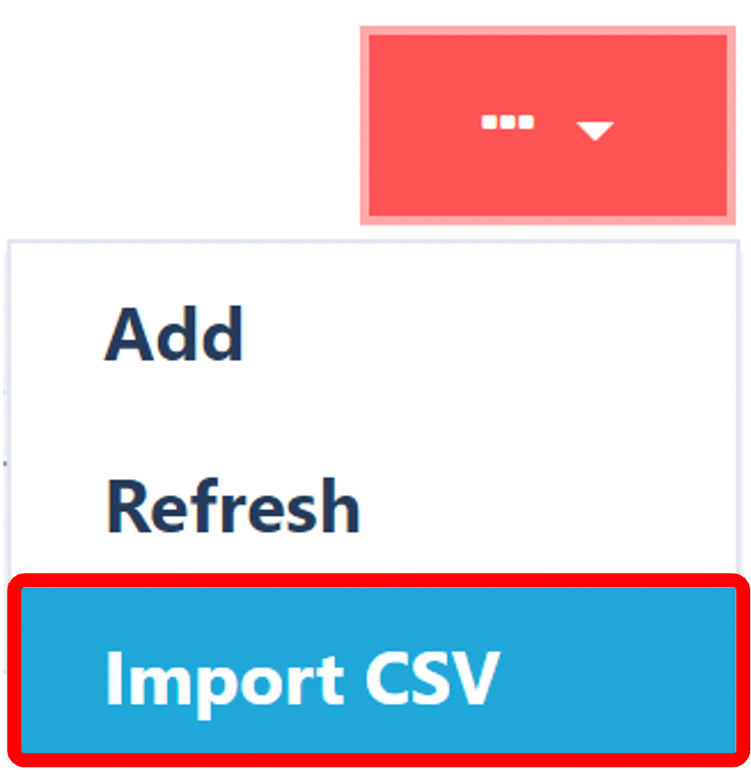
Click on the Red Action Button. This will bring up a drop-down menu, and select "Import CSV".
### Selecting the import type
Using the drop-menu select "**Item/UOM/reference Insert**"

### Choosing File
The next step is to click on "Choose File"
Locate and choose your file by clicking on "Open"

Select the company relating to the item.

Once you have selected and entered the required fields, click on the Import button to upload your file.
## Reference Insert CSV import
This section helps ensure that your CSV file meets the required format and criteria for successfully importing item reference data into the system.
| | **Item Code** | **Unit of Measure** | **Reference** |
| --- | --- | --- | --- |
| Example | GU1D3-1223 | Each | PO123456789 |
Template download:
### **Importing the CSV**
Click on the Red Action Button. This will bring up a drop-down menu, and select "Import CSV".

### **Selecting the import type**
Using the drop-menu select "Reference Insert"

### **Choosing File**
The next step is to click on "Choose File"

Locate and choose your file by clicking on "Open"

Select the company relating to the item.

Once you have selected and entered the required fields, click on the Import button to upload your file.
##
##
## ➕ Adding Items Manually
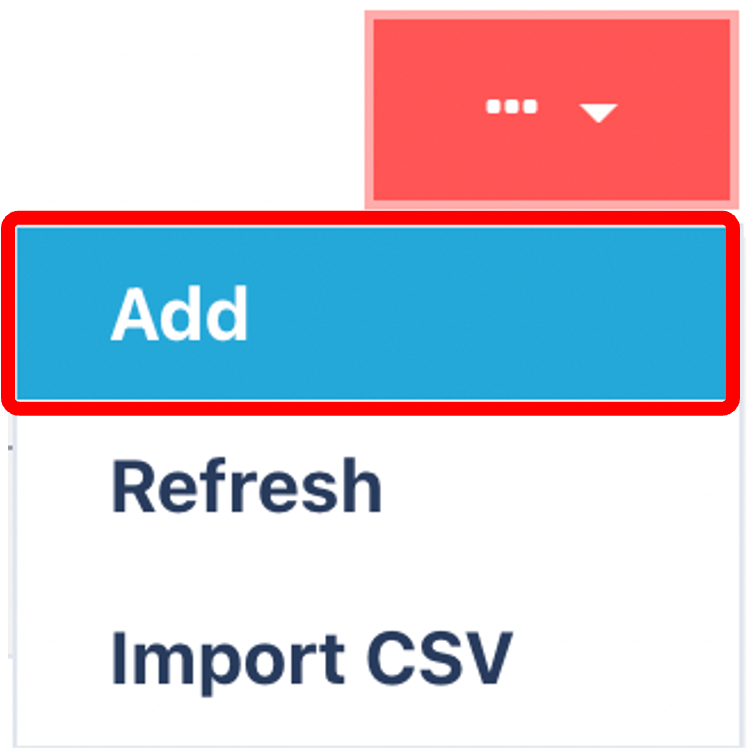
Click on the Red Action Button, this will bring up a drop-down menu, and select "Add"
### Enter in Mandatory Fields

- Enter mandatory fields:
- Item Code
- Company
- Description
- Item Group
A way to group items and is used in Configurations.
The other fields are optional but not required. It is recommended to provide as much information as possible for enhanced traceability and analytics. When adding an image the requirements are a .jpeg file up to 500 KB in size.
Once you have selected and entered the required fields, click on the submit button to add.
### Adding Unit of Measure
Search for your item. Here is a guide to [Searching within Item](https://www.canary7.com/help-center/docs/item-1#searching-within-item).
When the item has been located, click on the three dots and click edit.

Click on the Unit of Measures Tab

You will now need to add the Unit Of Measures, click on the Red Action Button, this will bring up a drop-down menu, and select "Add"

### **Enter Mandatory Fields**

Enter or Select the following:
1. Unit Of Measure
2. Factor
Once you are satisfied with all the data you have input into the item and ensure that it is correct, click on the submit button to continue.
The product will be stored within the warehouse and assigned with all the necessary information, it is only created once.
A name of the building, to which all the zones and locations belong and where the product is stored.
Stock Keeping Unit, a number used to help identify or differentiate products in inventory.
It is a unique name given to a company used for identifying.
It is a unique number assigned to an item by Canary7 which is the identifying field.
A box or drop-down in the user interface that allows the user to enter data into the system.
It is a unique name given to a company used for identifying.
A client or customer who owns the products that are in the warehouse.
A way to group items and is used in Configurations.
It is an employee or client with permitted access who will use Canary7 regularly to fulfil their needs.
Text with more detail that fully describes to the user what the field is.
A magnitude of how to quantify a physical amount of something eg. weight, amount or etc.
Text that informs the user of what the item is.
The physical horizontal distance and is often the largest horizontal side.
The physical horizontal distance and is often the shortest horizontal side.
The physical vertical distance of an object.
It is a unique code/number given to an item used to distinguish it from other items.
Text that informs the user of what the field is.
Unit of Measure is a magnitude of how to quantify a physical amount of something, e.g. weight, amount, etc.
A way of representing data, usually in barcode form.